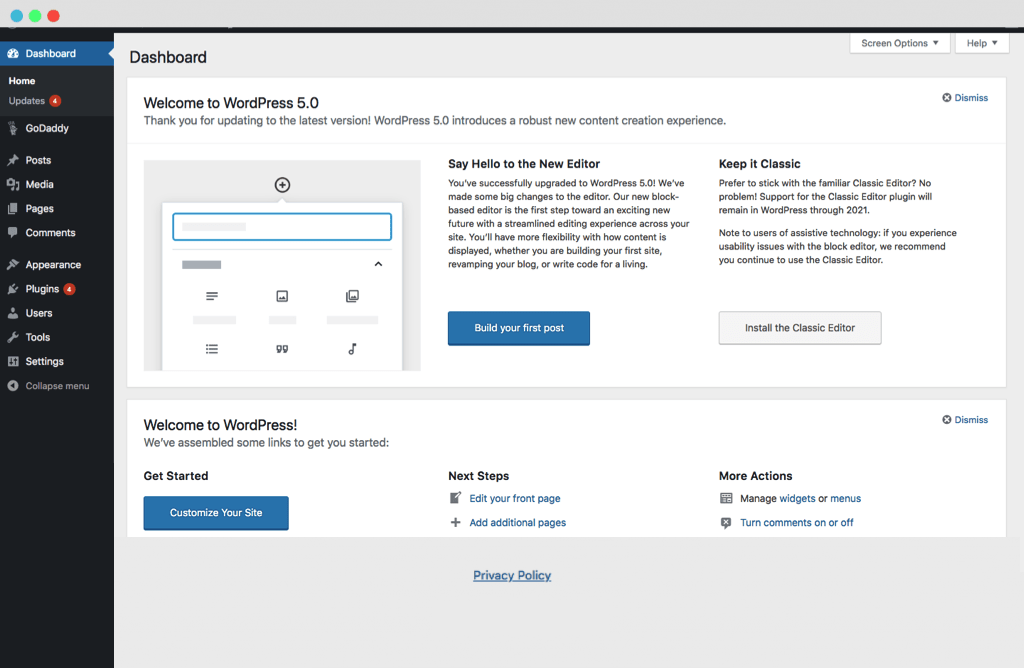
In this guide we'll be taking you through the process, step by step, of logging into your WordPress website.
You will need to already have a login account set up on your website for this to work. That's because you'll need the following information to actually log in:
- Your website's root URL:
- In most cases this is your website's homepage e.g. for us it's https://prystine.wpengine.com. However your website may be located in a sub-directory, for example: https://www.prystine.co.uk/services.
- Your account's username (or email address).
- Your account's password:
- If you don't have this, don't worry because you can reset it - see step 2.5.
If you don't have a login account created, please contact your web developer or hosting company, they'll be able to help you.
Step (1) - Heading to your login panel
Assuming you do have the above details, you'll need to head to your website's login panel.
This can be found by taking your website's root URL and adding one of the following suffixes:
- /wp-login.php
- /wp-admin
Up to you which one you choose, both virtually do the same thing - or at least they'll take you to the same place.
For example
To access the WordPress back office (admin panel) of a website with the root url of 'https://yourdomain.com' you will need to type into your URL/search bar either:
- 'https://yourdomain.com/wp-login.php' or
- 'https://yourdomain.com/wp-admin'
P.S. remember to remove the the apostrophes!
Step (2) - Logging in
Once you've entered the correct URL, you should come to a page looking very similar to this:
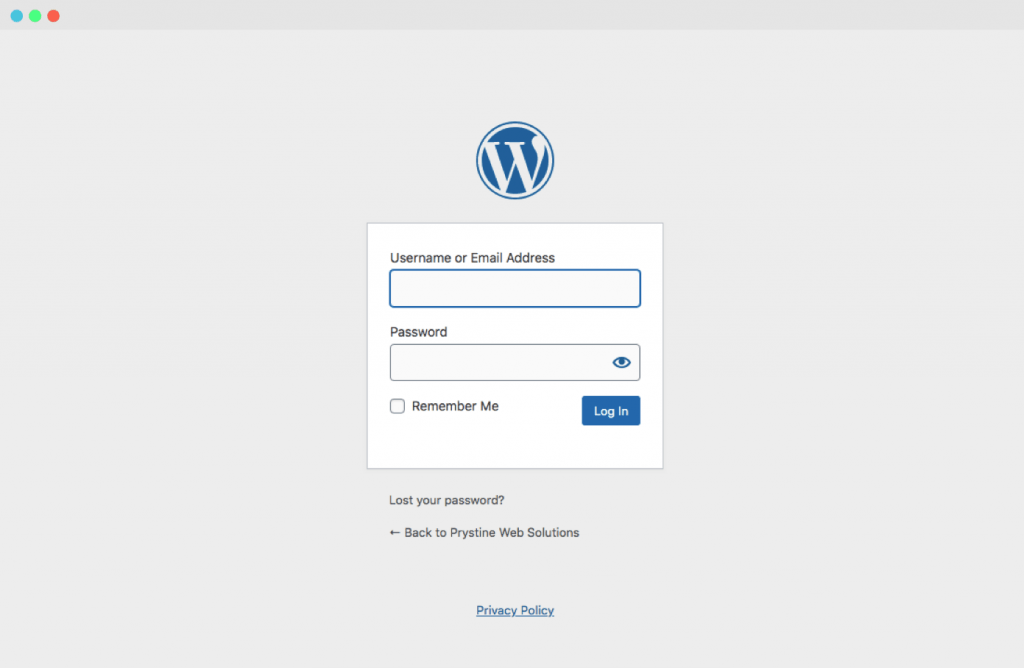
Simply type in your username (or email address) and password then hit 'log In'.
Unless you are on a private computer, don't check 'Remember Me' as it will keep you logged in for a certain period of time... Which is not ideal on public computers for security reasons.
Step (2.5) - Resetting your password
If you've forgotten your password, you'll need to visit the link just under the login form highlighted in red here:

You'll be redirected to a different page and asked for your username or email address.
Once entered, click 'Get New Password' and you'll be emailed a link to follow to reset your password.
Step (3) - The WordPress admin dashboard
Hurray! Assuming you've entered the right details you should be logged in to your website and it should look something like this: